The Attribute mappings section, available from FastBay 6.9.4, lets you match PrestaShop combination attributes to the names and values supported by eBay. For example, your catalogue may use “Medium” while the corresponding value in the eBay category is “M”.
Mappings are applied when preparing the data sent to eBay. Attribute names and values in your PrestaShop catalogue remain unchanged. Each configuration applies to the selected shop, marketplace and eBay category, and to products using that attribute group in the destination category.
Why this matters: eBay’s new size requirements
For clothing and footwear, eBay requires size values supported by the category and the eBay site where you sell. A custom size in your shop may therefore need to be matched to the corresponding eBay value.
The eBay Developer Program notice used for this update gives the following enforcement schedule:
| Date | Affected eBay sites / listings |
|---|---|
| 31 August 2026 | France, Italy and Spain |
| 8 September 2026 | United Kingdom, Canada and Germany |
| 15 September 2026 | Australia |
| 22 September 2026 | United States |
| 20 October 2026 | All variation listings globally, in the affected categories |
Variation listings, also called MSKU listings by eBay, let buyers choose different sizes or colours within one listing. If you sell on eBay Italy, do not wait until 20 October to review sizes: the schedule starts enforcement there on 31 August.
According to the same notice, once enforcement applies:
- new listings and listing updates with unsupported sizes are blocked;
- existing listings with unsupported sizes are hidden from the eBay site until the size is corrected.
Do not rely on eBay to correct sizes automatically. Even if some values have already been converted, you still need to check the data sent from your shop. See eBay’s size guidance for help choosing appropriate sizes.
What you need to do in your shop
- Check your FastBay version: this feature requires version 6.9.4 or later.
- Review clothing and footwear on each eBay site where you sell, including existing listings.
- Download current eBay data and map your sizes using the steps below.
- Complete any details required alongside the size, such as the size type.
- Synchronize and check one representative product first, then continue with the other affected products and review the results.
You do not need to rename every size in your PrestaShop catalogue. However, check each eBay category you use: the available sizes may differ between categories or countries.
Before you start
- Open the FastBay configuration and select the shop and marketplace you want to configure.
- Map at least one website category to a final eBay category, meaning a category where products can be listed. See Product category mapping (Italian) for the procedure.
- Make sure the attribute group you need, such as Size, and its combination values already exist in PrestaShop.
If no categories are mapped for the current marketplace, FastBay displays a notice. Complete the mapping in the Categories tab, then return to Attribute mappings.
1. Download up-to-date eBay data
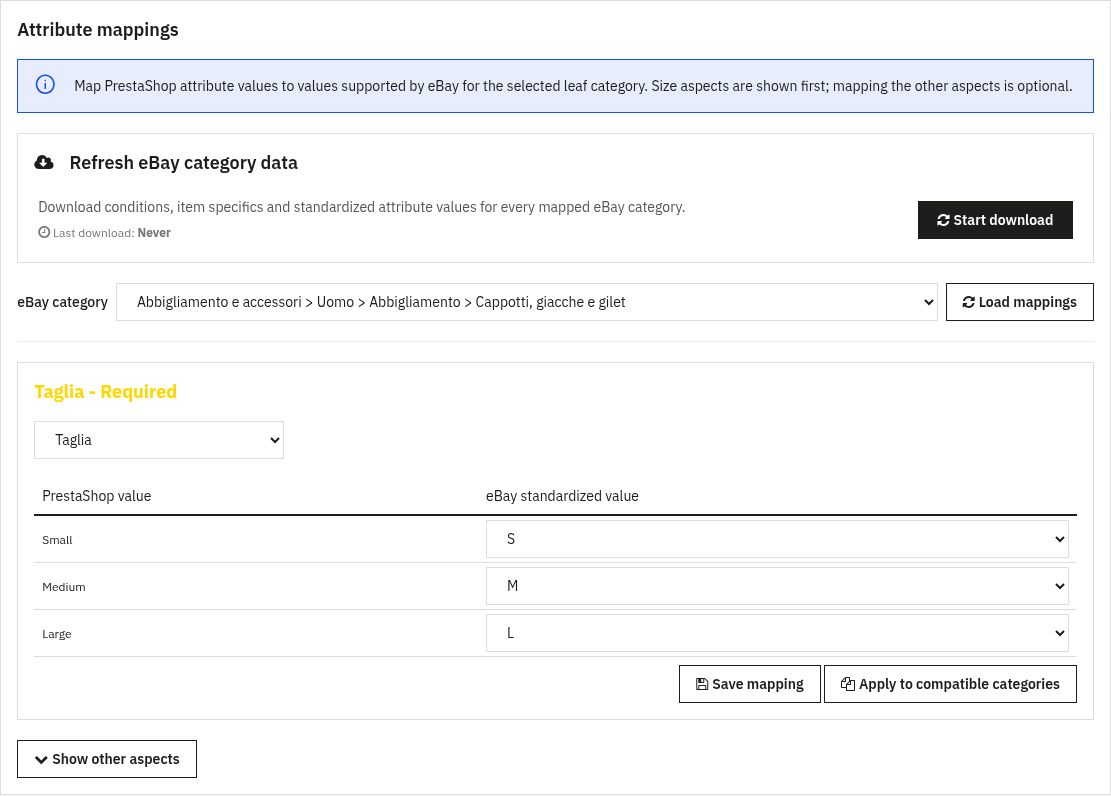
Open Attribute mappings in the FastBay menu. In the Refresh eBay category data panel, click Start download and wait for the operation to finish.
This downloads conditions, item specifics and standardized attribute values for every mapped eBay category. The panel displays the progress percentage, the number of categories processed and the date of the last download.
2. Select the eBay category
Select the destination in the eBay category field. The editor loads when you select a category; use Load mappings to reload it.
FastBay displays recognized size aspects first. An “aspect” is an eBay item specific, such as Size or Colour. This section only displays aspects that support variations and have predefined values downloaded from eBay. Names and options can vary by category and marketplace.
Aspects required by eBay are labelled Required. Click Show other aspects to access the remaining available aspects.
3. Match the attribute group and values
- In the panel for the eBay aspect you want to configure, open Choose an attribute group and select the corresponding PrestaShop group.
- Review the entries in the PrestaShop value column.
- For each row, select the corresponding option in eBay standardized value.
- If a Valid with column appears, also check its requirements before proceeding.
- Click Save mapping in that panel and wait for the Mapping saved message.
When a PrestaShop value matches an eBay option, ignoring capitalization and whitespace differences, FastBay may preselect it. Review the suggested values and save each edited panel before changing the category or reloading the editor.
Example: mapping a size
Suppose your shop’s Size group contains “Small”, “Medium” and “Large”, and the eBay category offers “S”, “M” and “L”. Select the Size group in the eBay size panel and configure the following matches:
| PrestaShop value | eBay standardized value |
|---|---|
| Small | S |
| Medium | M |
| Large | L |
Once saved, FastBay uses the eBay aspect name and the mapped values when preparing product data. Sizes in your shop remain Small, Medium and Large.
Understanding “Valid with”
Some eBay values are only valid when used with particular other item specifics. When present, the Valid with column displays these constraints and updates when you select a different value.
Mapping a size does not automatically fill in the specifics it depends on. Configure the required data as well, using the appropriate attributes or fixed eBay values in Specifications / Conditions. If one requirement accepts several alternative values, one is sufficient; if several different specifics are required, all requirements must be met.
For example, if size L shows the requirement Size Type: Regular, you must also provide that size type, as long as it accurately describes the item. This is only an example: use the names and values shown for your category.
FastBay checks these dependencies during synchronization. If required data is missing, the product is not sent and an error identifies the value that requires additional specifics.
Apply to compatible categories
To reuse a configuration, click Apply to compatible categories in its panel. This first saves the current mapping, then checks other mapped categories in the same shop and marketplace for:
- an aspect with the same name that supports variations;
- all the eBay values you have mapped;
- the same constraints for those values.
At least one value must be mapped. Once the operation finishes, FastBay reports how many categories were updated and how many of the categories checked were skipped.
Important: copying replaces the existing group and value mappings for that aspect in compatible categories. Before using it, check that the same matches are suitable for the products in those categories.
Unmapped values and later changes
For sizes covered by the new requirements, leaving a value unmapped does not guarantee that eBay will accept it. If your shop’s size differs from the available options, map it to the correct value before synchronizing.
Not mapped does not exclude a variation from the data sent to eBay. If the group is linked but an individual value has no explicit mapping, FastBay looks for an equivalent eBay value, ignoring capitalization and whitespace differences. If none is found, it keeps the PrestaShop value. If the group is not linked either, the original group name and value are retained.
To remove an explicit value mapping, select Not mapped on that row and save the panel. The fallback behaviour described above still applies, so an equivalent value may be suggested again when you reload the editor.
Review mappings whenever you add sizes to your catalogue or refresh eBay data. A saved value that eBay no longer offers is no longer used as a conversion: FastBay falls back to an equivalent value or the original value. Whether eBay accepts the original value depends on the category rules.
What if the exact size is not available?
Select the supported value that best represents the item. Where needed, add the labelled size, measurements and fit details in the description, photos or other appropriate item specifics. For footwear, also check the sizing system, such as EU, UK or US: the same number does not necessarily represent the same size. See eBay’s size guidance for more advice.
Saving and synchronizing
Save mapping stores the configuration in FastBay; it does not publish or update listings. Afterwards, run the usual synchronization for the affected products, choosing an operation that sends variation data. An update limited to prices and quantities is not sufficient to transfer these changes.
Mappings also apply when sending multiple products together. Check the synchronization result and the variations in the eBay listing.
Updating existing listings
Updating the module or saving mappings alone does not correct listings already on eBay. Once you have configured sizes, update the affected products through FastBay, then check on eBay that the sizes are correct and the listing is visible.
Start with clothing and footwear listings flagged by eBay, then review the other listings in the same category. If you have assigned a specific eBay category to an individual product, check the mappings for that destination category.
This feature does not include an automatic search for non-compliant listings or a dedicated command to correct them all. If an update is rejected, read the returned message, correct the specified data and synchronize again.
Troubleshooting
- The category is missing: check the selected shop and marketplace, then complete the mapping in Categories.
- No aspects with predefined values are found: use DOWNLOAD AND UPDATE in the notice or Start download. If the result does not change, the category may not provide aspects suitable for this editor.
- No size aspect is recognized: open Show other aspects, if available, and check the specifics offered for the category.
- Unable to save mapping: make sure you have selected a valid attribute group and values from the current eBay list.
- The attribute group is mapped to multiple eBay variation aspects: review the category mappings and avoid assigning the same group to multiple variation aspects.
- An eBay value requires other specifics: check Valid with and complete the required data before synchronizing again.
For other listing details, see Item specifics and conditions (Italian). Attribute links are managed in the new Attribute mappings tab; the selector in Specifications / Conditions may show them as “Not mapped” even when they exist. Check them in the dedicated tab.